1Win offers a dedicated desktop application for Windows PCs. It is a lightweight client that installs in seconds and provides the same full platform access as the website — sports betting, casino, live games, deposits, and withdrawals — in a standalone window that does not depend on a browser.
Is There a 1Win App for Windows
Yes — unlike iOS, where 1Win uses a browser-based PWA, the Windows version is a genuine installable application. It runs as a separate program on your desktop and does not require a browser to operate. The app is free and available directly from the 1Win website.
The application file is small — approximately 2.78 MB — and installs without any complex setup process. It is developed and distributed by 1Win directly, not through the Microsoft Store.
1Win for Windows Download Button
How to Install the Application
The installation takes under a minute:
- Open the official 1Win website in any browser.
- In the top-right corner of the homepage, locate the Windows Application download link — it sits near the login and registration buttons.
- Click the link. A system prompt will appear asking: Install an application?
- Confirm the installation. The app installs automatically and creates a shortcut on your desktop.
- The application launches in a separate window and is ready to use immediately.
No manual extraction, no antivirus bypass steps, and no Microsoft account required. If your browser flags the download, this is standard behavior for executable files downloaded from websites — you can allow the download and proceed safely, provided you are on the official 1Win domain.
After installation, use the desktop shortcut to open the app. You do not need to visit the website again for regular use.
System Requirements
1Win does not publish a detailed technical specification for the Windows app, but based on the application’s size and HTML5-based architecture, the practical requirements are minimal:
| Requirement | Details |
|---|---|
| Operating system | Windows 7 or later (Windows 10/11 recommended) |
| Storage | Under 10 MB for the application itself |
| RAM | 2 GB minimum; 4 GB or more recommended |
| Internet | Stable broadband or mobile connection required |
| Browser engine | Built-in — no separate browser needed |
The app uses significantly less bandwidth than streaming-heavy desktop applications. This makes it a practical option on metered or slower connections where keeping a browser tab open might consume more traffic.
There is no Mac version. Users on macOS should use the browser-based website or PWA method instead.
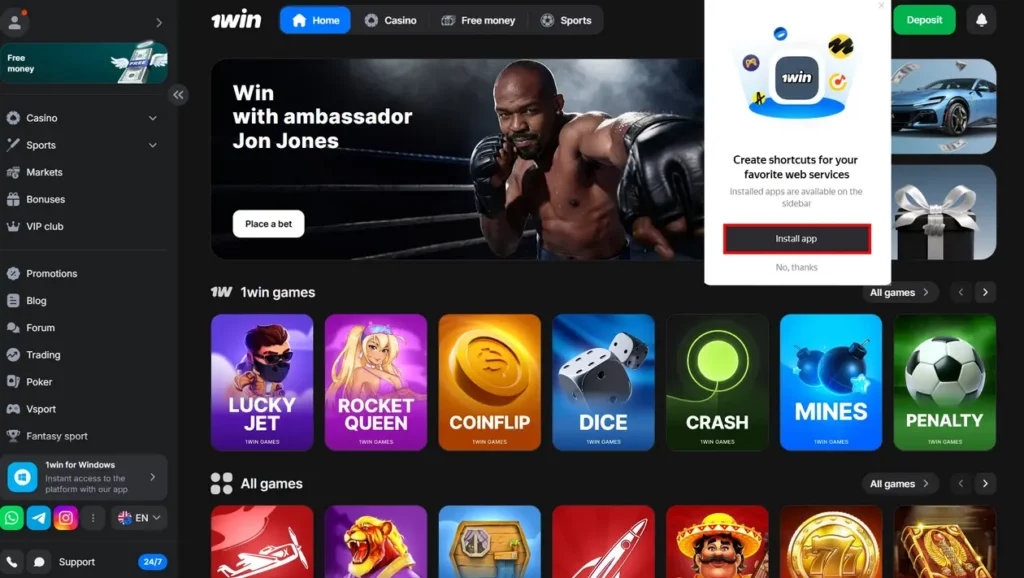
Install 1Win App Windows
How the App Differs from the Website
The Windows app and the 1Win website offer identical functionality — every section available on the site is present in the app. The differences are practical rather than feature-based.
Standalone window. The app opens in its own window independent of any browser. You do not need Chrome, Edge, or Firefox running, and closing your browser does not affect the app session.
Faster section loading. The app loads sections more quickly than a browser tab in most cases, partly because it does not share resources with other open tabs or extensions.
Lower background traffic. For users on mobile data connections or metered broadband, the app consumes less data per session than a browser with multiple open tabs.
Persistent access regardless of site status. If the 1Win website domain is blocked in your region or temporarily unreachable, the installed app can often continue to function normally through its own access routing — though this depends on the nature of the restriction.
No browser-specific issues. Cookie management, cache conflicts, and extension interference that sometimes cause browser login problems do not apply to the desktop app.
The interface opens by default in the language of your region. The language selector is in the top-right corner with more than 20 options available. Navigation follows the same menu structure as the website: Home, Live, Line, Cybersports, Casino, and additional sections including Quick Games, Poker, BetGames, and 1Win Games.

1Win app for Windows Old Version
Common Errors and How to Fix Them
The download link is not visible on the homepage In some regions, the Windows app link is not shown by default. Try accessing the 1Win website with a VPN active, or contact support via live chat to request the direct download link.
Installation is blocked by Windows SmartScreen Windows SmartScreen may flag the installer as an unrecognized application. This is standard for software not distributed through the Microsoft Store. Click More info on the SmartScreen prompt and then Run anyway to proceed. Only do this if you downloaded the file directly from the official 1Win domain.
The app opens but shows a blank or broken screen This usually indicates a connection issue or a cached session conflict. Close the app completely, wait a moment, and reopen it. If the issue persists, uninstall the application, download a fresh copy from the 1Win website, and reinstall.
Login fails after installation Use the same credentials you use on the website. If you registered via social media (Google, Telegram, etc.), use the social login option in the app rather than typing an email and password manually. If your password is incorrect, use the Forgot Password option and reset via email.
The website is blocked in your country and the app also fails to connect Some regional blocks affect the app’s connection as well as the browser site. In this case, a VPN or official mirror site address (available from 1Win support) may be needed. Once connected through a VPN, the app typically functions normally.
Deposits are not processing through the app Some payment methods redirect to an external page to complete the transaction. If the redirect fails within the app window, open your browser and complete the deposit through the 1Win website directly — the balance will update in the app automatically once the transaction is confirmed.